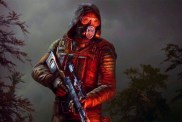
The Finals, a remix of Counter-Strike, Warzone, and Rainbox Six Siege, has recently released its open beta, but many players are experiencing matchmaking errors. This can be frustrating, especially for those who are eager to try out the game. There are a few reasons why matchmaking might fail in The Finals beta.
- Server overload: The game is still in beta, and the servers are not yet able to handle the high volume of players. This can lead to matchmaking errors, such as being stuck in queue.
- Bugs: The game is still in development, and there are likely bugs in the matchmaking system. These bugs can also cause matchmaking to fail.
- Internet Issues: The game requires the internet to work. When experiencing matchmaking errors, try resetting your router and modem. If possible, you should try to connect it to a different network.
Can you fix The Finals open beta’s stuck in queue error?
There is no guaranteed way to fix the stuck-in queue error in The Finals open beta. However, there are a few things you can try:
- Restart your game and computer. This may seem like a simple solution, but it can often fix minor problems.
- Check the server status. If the servers are overloaded, there is not much you can do but wait. However, you can check the server status on the game’s official website to see if there are any known issues.
- Change your matchmaking region. Sometimes, changing your matchmaking region can help to reduce queue times. To do this, go to the game’s settings and select a different region.
- Try playing at a different time. The servers are likely to be busiest during peak hours. If you are experiencing queue times, try playing at a different time of day.
Can you fix The Finals open beta’s matchmaking failed error
There are a few things you can try to fix the matchmaking failed error in The Finals open beta:
- Verify your game files. Corrupted game files can sometimes cause matchmaking errors. To verify your game files, go to the game’s Steam library page and right-click on the game. Select Properties and then click on the Local Files tab. Click on the Verify integrity of game files button.
- Update your drivers. Make sure that your graphics card drivers are up to date. You can download the latest drivers from the manufacturer’s website.
- Disable your antivirus and firewall. Antivirus and firewall software can sometimes interfere with downloading necessary files for the game. Try disabling your antivirus and firewall software before verfifying your game files and see if that fixes the problem.
If you have tried all of the above and you are still experiencing matchmaking errors, you can contact the game’s developers for support.

GTA 6‘s price has finally been unveiled, and it might surprise some fans as it has crossed the $70 threshold.…
After charming fans with his performance in Spider-Noir, Nicolas Cage has now stepped into the Call of Duty universe. He…

It seems like LEGO has taken its obsession with speed and cars to another level, unveiling a life-size replica of…
Rockstar Games has announced the official start date for Grand Theft Auto (GTA) VI pre-orders. The announcement gives fans a clear…
Fans are hooked on the brutal gameplay on display in Marvel’s Wolverine’s newly released trailer. It shows close-quarters brawls where…

Thieves reportedly broke into a California card store and stole Pokémon Cards worth $15,000 in under 40 seconds. The masked…